How to Set Up Google Ads Conversion Tracking in Shopify: Easy Step-by-Step Guide (2026)
If you sell on Shopify and want to run Google Ads, conversion tracking is the first thing to sort out. Without it, Google has no idea which clicks turned into sales, and neither do you. I've run my Google Ads agency,
If you sell on Shopify and want to run Google Ads, conversion tracking is the first thing to sort out. Without it, Google has no idea which clicks turned into sales, and neither do you.
I've run my Google Ads agency, Big Flare, for over 13 years, and what follows is the fastest way I know to have accurate tracking live on your Shopify store, so you can start making sales from Google Ads today. No code, no theme files and no unnecessary steps.
Here's the whole process, step by step.
Step 1: Install the Free Google and YouTube App
Log into your Shopify admin. We're going to install the Google tracking using the free Google and YouTube app for Shopify.
Head to the Shopify App Store and search for "Google". The app you want is called Google and YouTube, and it should be the first result. Before you install it, double check that the developer is listed as Google LLC. That's how you know you have the official app.
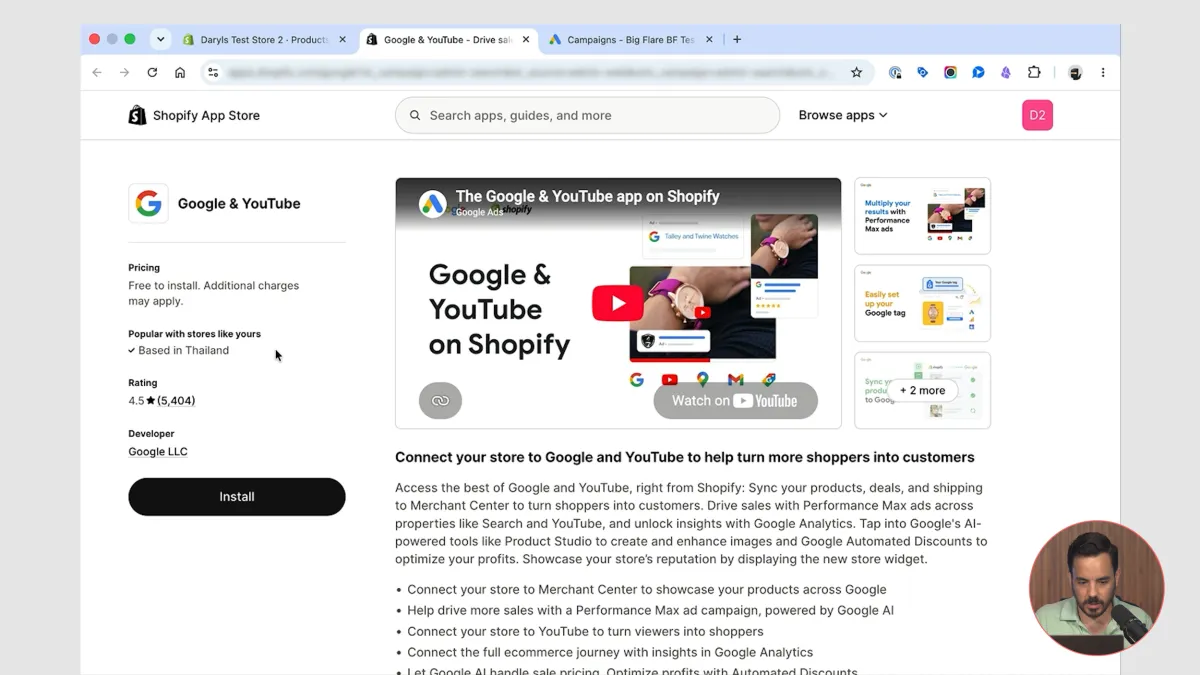
Click install, then click install again on the confirmation page, and away you go.
Step 2: Connect the Right Google Account
Once the app has installed, you'll land on a screen that says "App setup" at the top. Make sure you're actually inside the Google and YouTube app, then hit the button to connect your Google account.
Now here's an important part. Log in with the same Google account you use to log into Google Ads, and make sure that login has admin level access to the Google Ads account you want to link. You may need to complete two-factor authentication at this point too.
A Quick Note on Google Merchant Centre
Once you've authenticated, you might see a screen prompting you to connect Google Merchant Centre. That isn't part of this process. If you haven't connected Merchant Centre yet, you will need to, but it's a separate job and outside the scope of this guide.
If you don't need to deal with it right now, click the start button and move on. If you've already set up Merchant Centre and connected it to Shopify, you'll skip straight ahead to the next screen anyway.
Step 3: Pick the Correct Google Ads Account
Next, you connect your Google account and choose which Google Ads account to link. If your email address has access to several Google Ads accounts, you'll see more than one listed here.
Select the account you actually want to set up conversion tracking for, then click connect. It sounds obvious, but it's an easy one to rush, and if you pick the wrong account your tracking won't be feeding the account you're running ads from.
Step 4: Check Which Conversions Are Primary
The next screen confirms which conversions are going to be measured. This is usually set up correctly already, so most of the time you can just click confirm. But do check it, in case there are any issues.
Here's how it should look:
Checkout completed must be switched on and set as the primary action. This is the most important one by far.
Checkout started, added to cart and the other actions are all fine to track. They're a nice-to-have, optional extra, but they must be set to secondary.
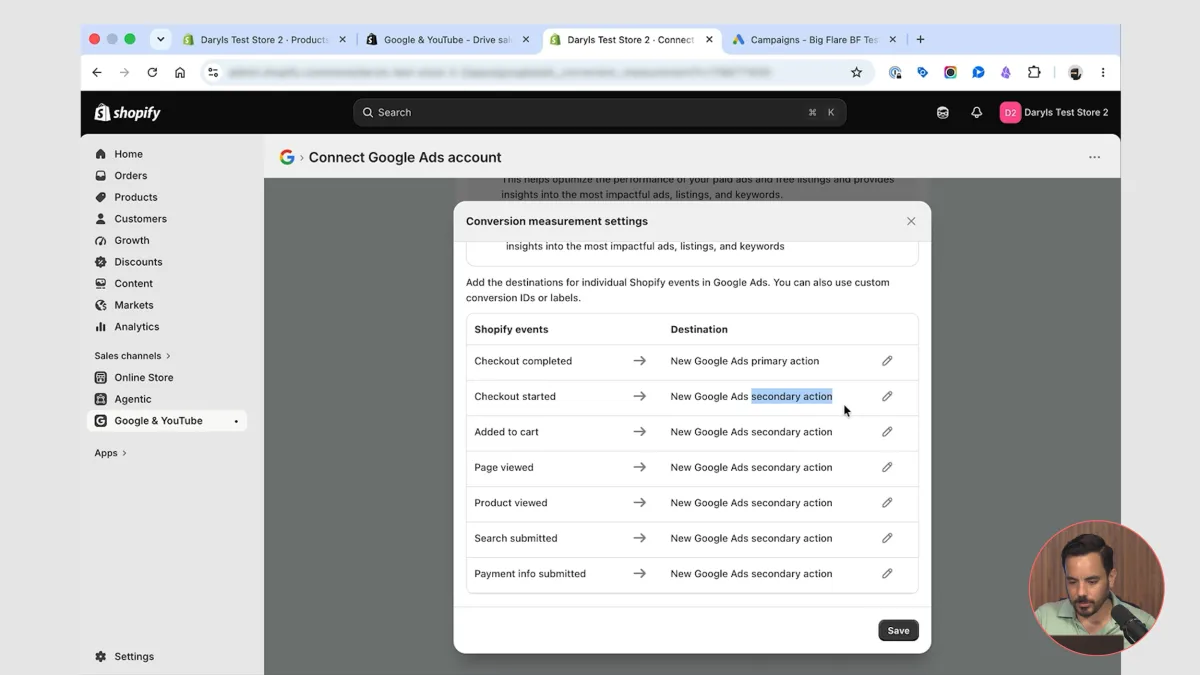
Why does this matter? Primary conversions are what Google Ads uses to optimise your campaigns. Secondary conversions aren't used for optimisation, but the data is still observable, so you can still see it in your account. You want Google chasing purchases, while you keep an eye on how many people added to cart or started checkout.
So, checkout completed is primary. Everything else can feed into Google Ads, as long as it's secondary.
Step 5: Confirm Your Google Tags and Complete Setup
The next screen asks you to confirm the Google tags on your site. If you already have other Google tags installed, they'll be listed here. There's nothing for you to do except click confirm.
Then click "Complete setup". You've done the main steps, and your conversion tracking is now mostly set up. There's one setting to update and one check to make before you can call it finished.
Step 6: Switch On Enhanced Conversions
Back in Shopify, find where it says Google Ads is active, click the three dots next to it, and choose "Manage settings".
On the settings screen, scroll down to the "Conversion measurement" section and open the drop down labelled "Additional conversion measurement settings". The setting you're looking for is enhanced conversions. Switch it on, then click save.
This improves your overall tracking by sending additional data to Google, so even if someone doesn't take the final step, Google is at least able to track something. It also enhances your conversions by sending information like email addresses to Google, which helps Google match conversion data up better in its system.
At this point, you've done everything you need to do in Shopify.
Step 7: Check Everything in Google Ads
The last step is to check everything is correct in Google Ads.
In your Google Ads account, go to Goals, then under Conversions, click Summary. Scroll down until you see the conversion actions you just set up.
When you first open this up, you'll probably see statuses like "Needs attention" or "Awaiting conversions". Don't panic. It takes a little while, at least a couple of days, for full conversion data to come through. Once it has, come back and check that conversions and conversion value are showing correctly.
There is one check you can do right now, though, before you wait for any data. Under the Purchase category you should see Google Shopping App Purchase. Make sure that's set to primary.
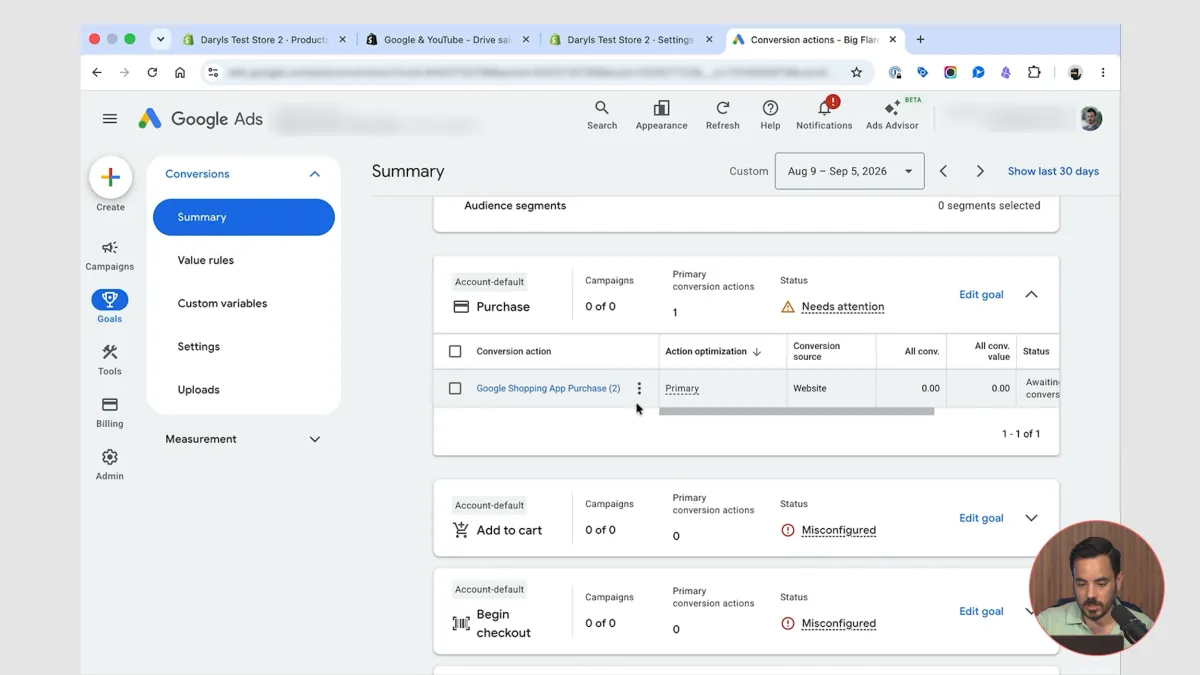
Then look at everything else. It's fine to have add to cart, begin checkout and all the other conversion types in your account, as long as every one of them says secondary.
Seriously, make sure all the other conversions are set to secondary. If they're not, you'll be wasting money paying Google for conversions that aren't the one you really want, which is people buying your product.
And that's it. Install the app, connect the right account, keep purchases as your only primary conversion, switch on enhanced conversions and confirm it all in Google Ads. Do that and your Shopify store is ready to feed Google Ads the sales data it needs to optimise your campaigns.
Conclusion
Setting up Google Ads conversion tracking on Shopify does not need code, theme edits or a developer. The free Google and YouTube app handles it, as long as you follow these steps:
Install the official app. Search the Shopify App Store for the Google and YouTube app and check the developer is Google LLC.
Connect the right Google account. Use the same login you use for Google Ads, with admin level access to the account you want to link.
Leave Merchant Centre for later if you need to. Connecting it is a separate job, but you will need to do it if you haven't already.
Select the correct Google Ads account. If your email has access to several accounts, pick the one you want to track conversions in.
Set checkout completed as the only primary conversion. Checkout started, added to cart and the rest are fine to track, but only as secondary, so they are visible without being used for optimisation.
Confirm your Google tags and complete setup.
Switch on enhanced conversions under Manage settings, Conversion measurement, Additional conversion measurement settings, then save.
Check Google Ads. Under Goals, Conversions, Summary, make sure Google Shopping App Purchase is primary and everything else is secondary. Allow at least a couple of days for full conversion data to come through, then check conversions and conversion value are showing correctly.
Any conversion left as primary that isn't a purchase means paying Google for actions that aren't sales, so that final check is the one not to skip.
More Articles
All ArticlesPerformance Max During the Slow Season: Should You Lower Target ROAS or Switch to Maximise Conversions?
A question came up on an Ecommerce community I’m part of that I suspect a fair few of you are quietly living through right now. Someone had a Performance Max campaign running on a specific group of products. Through the
Is Feed Only Performance Max Dead? Standard Shopping vs PMax After Maximise Conversion Value and AI Max for Shopping
Google have just killed every reason to run a Feed Only Performance Max campaign in Google Ads, and they did it without ever telling you. Two updates are behind it. Google announced one, but buried the part that